Virtual Desktop memungkinkan Anda membuka banyak ruang kerja tanpa harus menutup aplikasi.
1. Cara Mengaktifkan Virtual Desktop
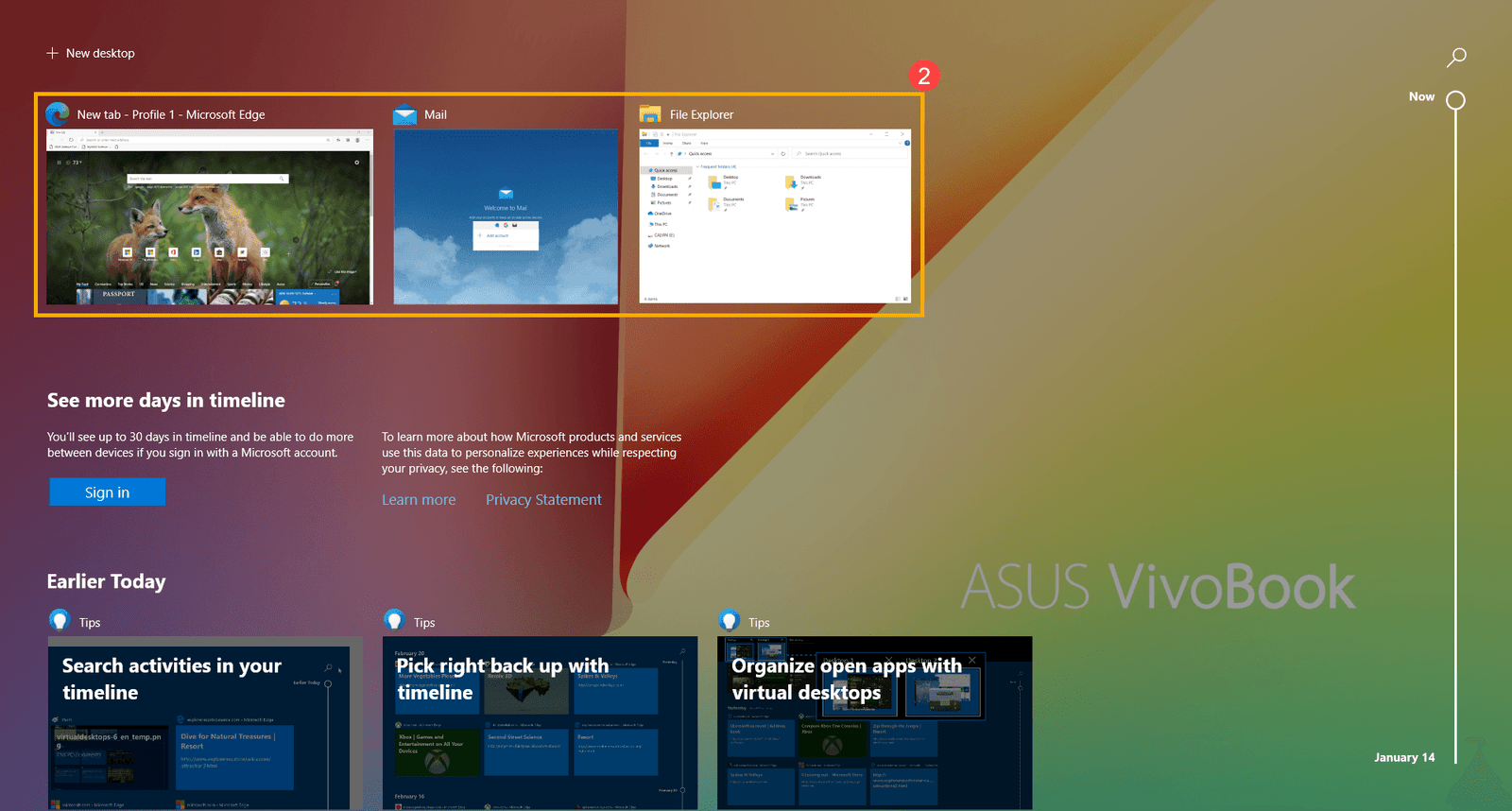
Tekan Windows + Tab, lalu pilih “New Desktop”.
2. Pindah Antar Desktop
Gunakan shortcut Ctrl + Windows + Panah Kiri/Kanan.
3. Tutup Virtual Desktop
Buka Windows + Tab, pilih desktop yang ingin ditutup, lalu klik X.
4. Manfaat Virtual Desktop
Ideal untuk multitasking, misalnya satu desktop untuk kerja, satu untuk hiburan.
Kesimpulan
Dengan Virtual Desktop, kerja jadi lebih rapi dan cepat. Laptop performa tinggi untuk multitasking? Sewa di BMG.






Howdy would you mind letting me know which hosting company you’re using? I’ve loaded your blog in 3 completely different internet browsers and I must say this blog loads a lot quicker then most. Can you recommend a good hosting provider at a reasonable price? Many thanks, I appreciate it!
Youre so cool! I dont suppose Ive read something like this before. So nice to seek out anyone with some original thoughts on this subject. realy thanks for starting this up. this web site is something that’s needed on the internet, somebody with a little originality. helpful job for bringing one thing new to the web!
What¦s Taking place i am new to this, I stumbled upon this I’ve found It positively useful and it has helped me out loads. I’m hoping to contribute & aid other customers like its helped me. Good job.